Raster operations#
Raster operations in Kalpa allow users to perform various manipulations and analyses on raster data layers. These operations include resampling and raster to vector conversion (vectorization). This section provides an overview of the available raster operations and how to use them effectively.
Resampling Raster Data#
Resampling is the process of changing the resolution of a raster dataset. Kalpa provides tools to resample raster data to a desired resolution using different interpolation methods.
Function Overview#
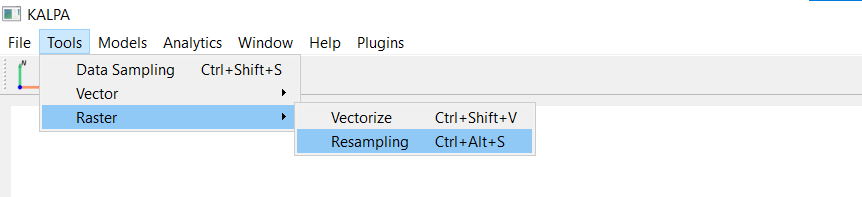
Navigate to Tools > Raster > Resampling.
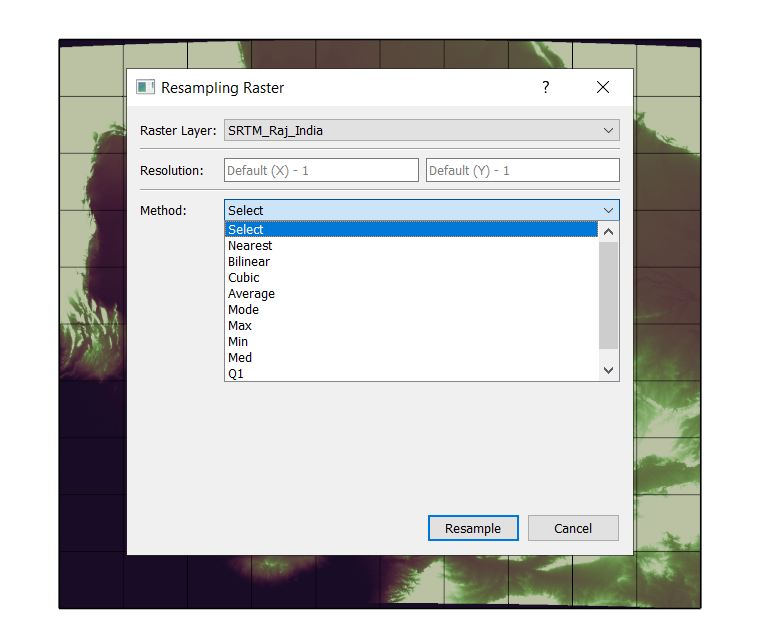
Select the raster layer you want to resample.
Specify the target resolution in both X and Y directions (in degrees).
Choose the interpolation method. Following methods are available:
Nearest Neighbor: Interpolates the value of the nearest pixel.
Bilinear: Uses the weighted average of the four nearest pixels to estimate the new pixel value.
Cubic Convolution: Uses the weighted average of the sixteen nearest pixels for a smoother result.
Average: Computes the average value of all pixels that fall within the area of the new pixel.
Mode: Assigns the most frequently occurring value among the pixels that fall within the area of the new pixel.
Max: Assigns the maximum value among the pixels that fall within the area of the new pixel.
Min: Assigns the minimum value among the pixels that fall within the area of the new pixel.
Median: Assigns the median value among the pixels that fall within the area of the new pixel.
Q1: Assigns the first quartile (25th percentile) value among the pixels that fall within the area of the new pixel.
Click Resample to execute the operation. The resampled raster will be added as a new layer in the Layer Panel.
Raster to Vector Conversion (Vectorization)#
Vectorization is the process of converting raster data into vector format. Kalpa provides a tool to perform raster to vector conversion based on specified criteria.
Function Overview#
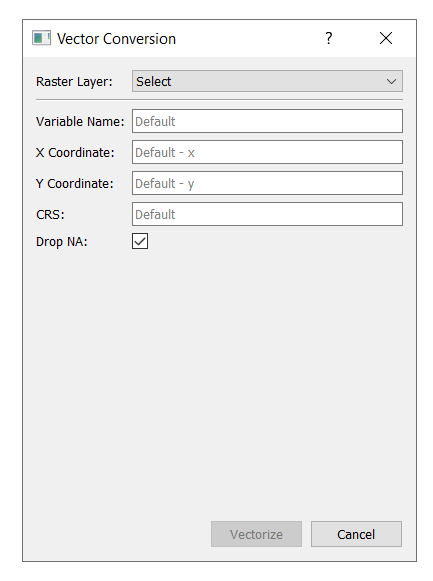
Navigate to Tools > Raster > Vectorize.

Select the raster layer you want to convert.
Variable Name: Specific variable names to extract in case of multi-band rasters (Example input: [‘temperature’, ‘precipitation’]).
X Coordinate: Specify the column name having X coordinates (longitude) in your input raster.
Y Coordinate: Specify the column name having Y coordinates (latitude) in your input raster.
CRS: Choose the coordinate reference system for the output vector layer (default=’EPSG:4326’).
Tick the Drop NA checkbox to remove pixels with NoData values in the input raster.
Click Vectorize to execute the operation. The vectorized layer will be added as a new layer in the Layer Panel.
Note: It is recommended to just select the raster layer and leave other fields to their default values for standard raster data.